For designers Saving assets
Overview
Once you’ve made a new illustration asset, they need to be saved into the shared Google Drive library and the Adobe Creative Cloud library. There should be an RGB and CMYK version of each asset. If you have made a scene or spot illustration with any new individual assets such as characters, objects or buildings, be sure to add those individual assets to the library also.
Shared Google Drive
- Before saving your illustration, select it and use the ‘Outline Stroke’ tool to ensure any lines or outlines are made into shapes to remove any risk of errors when scaling.
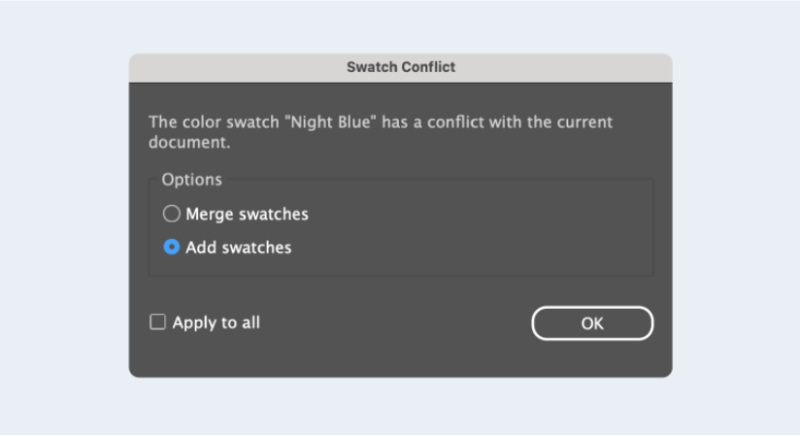
- Check the colour palettes are up to date and correct, removing any unnecessary swatches using the “Select all unused swatches” option. Avoid saving with duplications of swatches and ensure you match the original codes from our swatch palettes. To prevent altering the documents swatches, select “Add swatches” when the swatch conflict alert message appears.
- When making different CMYK and RGB versions, check the profiles are correct and update the swatches using the up to date CMYK and RGB colour swatch files. You can locate the colour profiles and swatches in the “Colour” folder within the “Design assets” folder on our Google shared drive.
- Check the existing illustration folders in Google Drive to locate a suitable file where your new illustration could be saved. Open the file and paste the illustration in with the artboard, ensuring you don’t disrupt the other assets. Double check the strokes and palettes as above and save. If there is no relevant file for your illustration, save as a new Illustrator document in the suitable topic folder.
Adobe Creative Cloud libraries
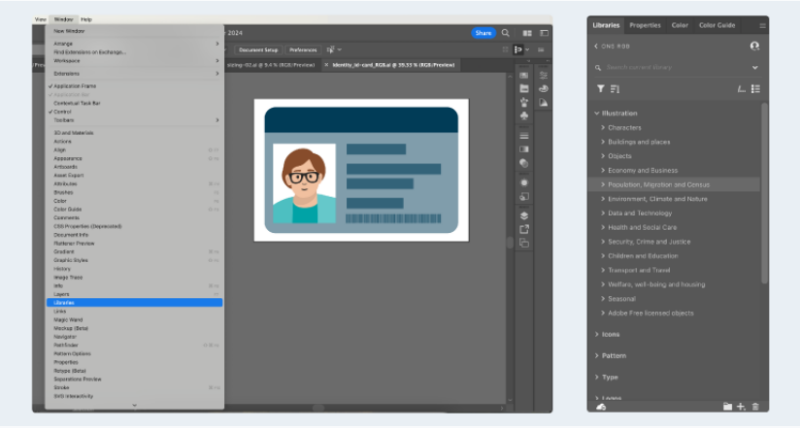
Once the RGB and CMYK versions of your illustration are saved on the Google Drive, add them to the Adobe Creative Cloud library. Open the “Libraries” tab within Illustrator and select either “ONS RGB” or “ONS CMYK” depending on which version you are saving out.
If you can’t see the shared CC libraries, please notify the Graphic Design team so we can ensure you have the correct permissions to access them.
- With the illustrator file open, select the single asset, drag and drop into the relevant folder within the library sidebar. The sub-folders in each topic should mimic the Illustrator files saved within the topic folders in our shared Google Drive.
- If you edit an asset that’s been saved into the CC library, locate the asset within the Illustrations folder in the Google Drive and replace the asset for the edited version. Ensure the edits are made across both RGB and CMYK CC and Google libraries.
Naming and tagging illustrations
Asset names should be clear and simple, depicting what it represents without going into unnecessary descriptive detail.
When saving illustration files within the Google Drive folders, follow the name of the asset with either “_RGB” or “_”CMYK” depending on which profile you’re working on. This is to help differentiate between them when open and in use, ensuring you’re using the correct profile set up and swatches. You don’t need to add this when naming assets within the CC libraries.