Components
Overview
Components are the building blocks for any user interface.
Individual components can be used for various patterns and contexts. For example, the input component can be used to ask for an email address, a date or a name.
Each component has guidance on:
- when to use it
- how to use it
- variations you can use
- how to check it for errors
- user research done on it
You are welcome to contribute a new component or a change to an existing component.
Navigation
These components are used to help users navigate a service.
Back to top
The back to top component helps users quickly return to the top of a long page.
Breadcrumbs
Breadcrumbs show the user’s location and allows navigation to parent pages.
Pagination
Pagination allows users to navigate a series of pages in a linear or semi-linear manner.
Section navigation
Section navigation allows navigation across pages of closely related content from within a main section.
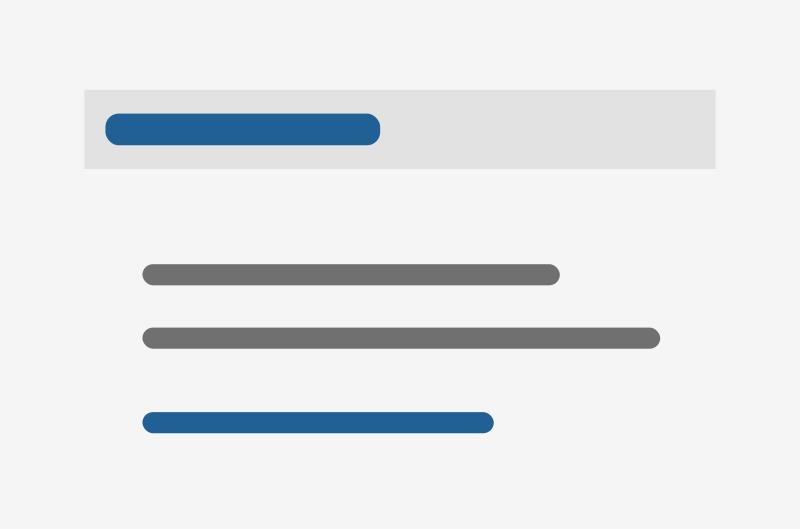
Skip to content
Skip to content component lets users go straight to the main part of the page.
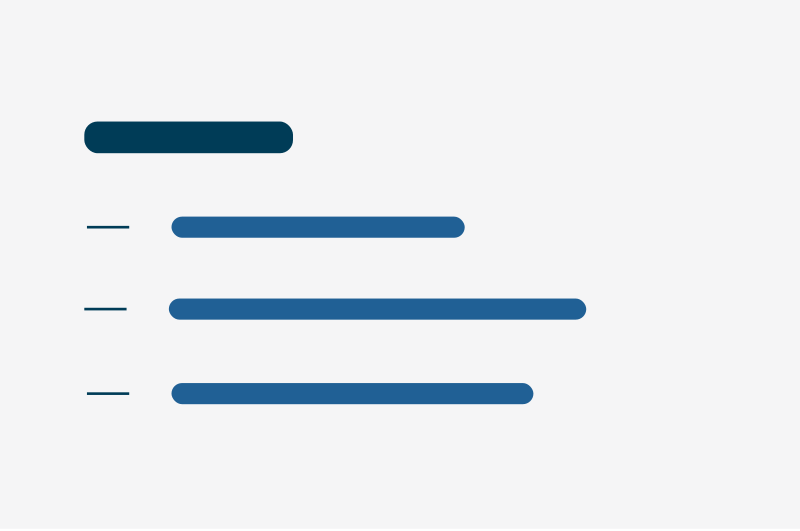
Table of contents
A table of contents creates a list of sections so users can jump to what they need.
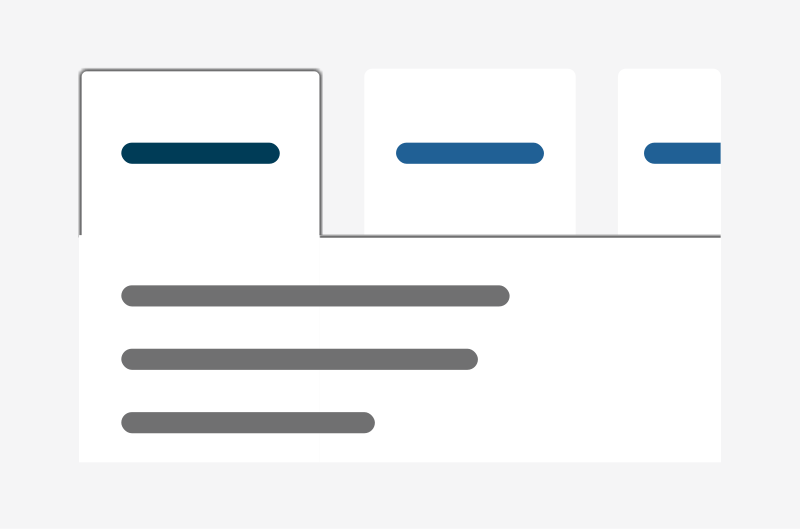
Tabs
Tabs lets users switch between related sections of content on the same page.
Form elements
These components are used to build online forms.
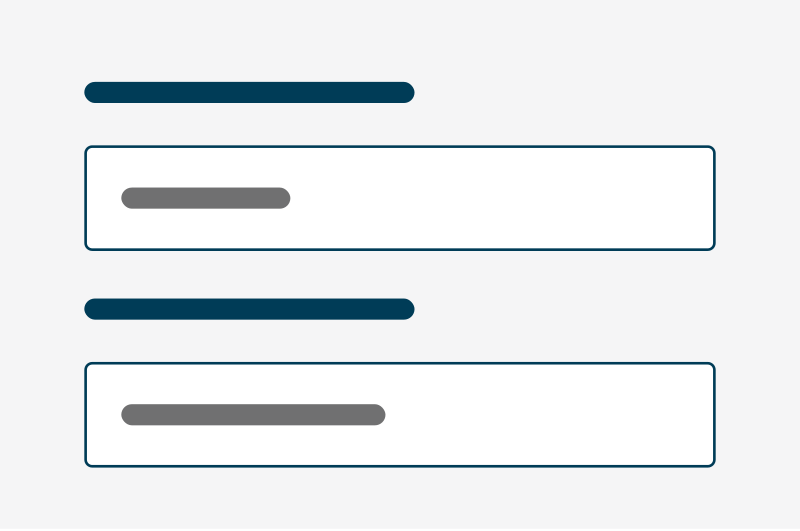
Address input
Address input lets users search for or manually enter an address.
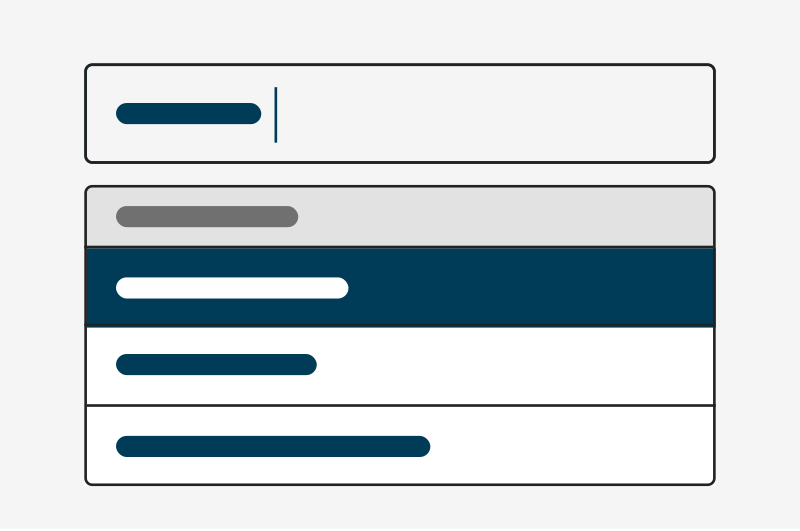
Autosuggest
Autosuggest proposes options as users type, with the option to enter their own.
Button
A button lets users perform an action, such as submitting a form.
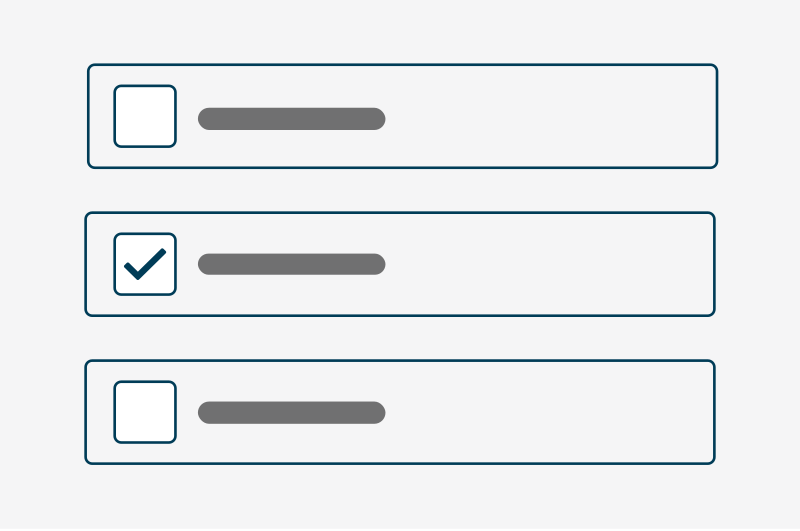
Checkboxes
Checkboxes allow users to select one or more options from a list.
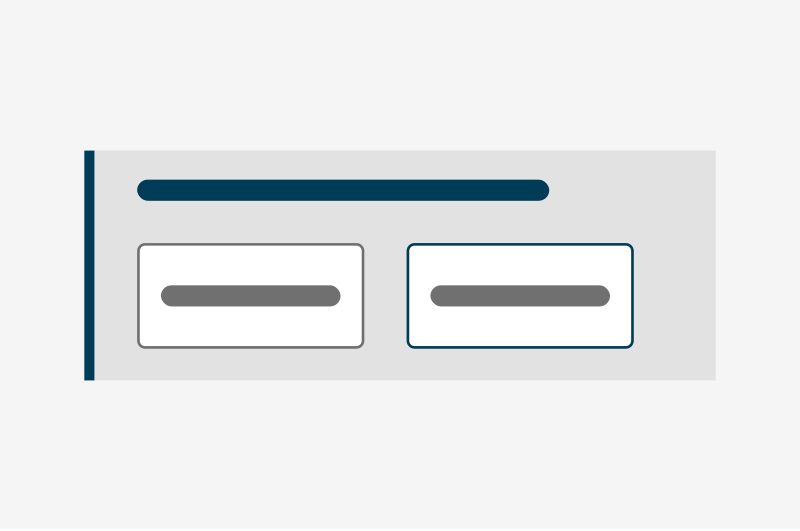
Error details
The error details component shows validation messages next to form fields.
Error summary
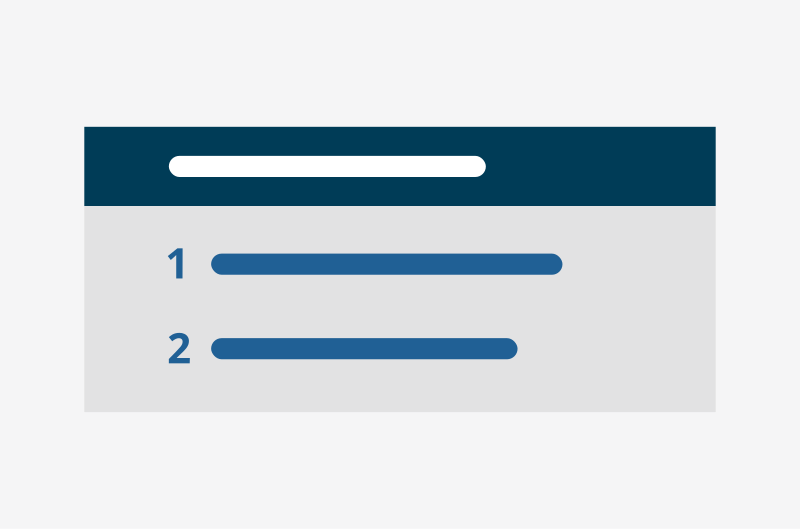
The error summary lists all errors at the top of the page.
Field
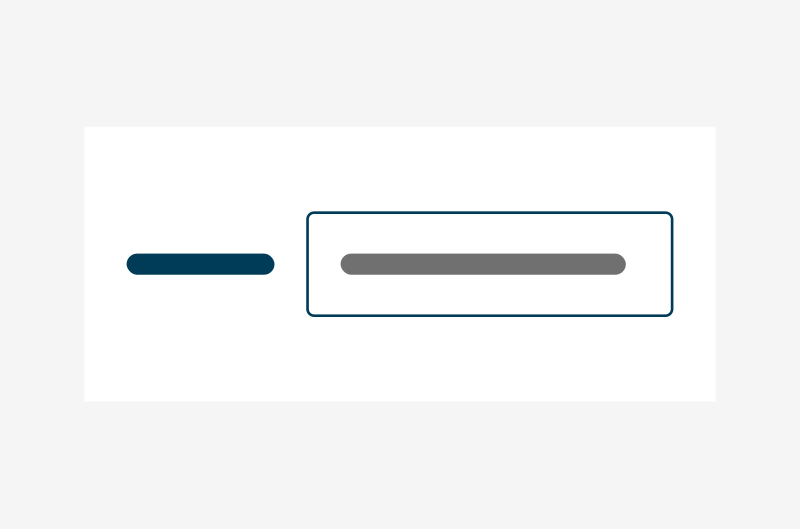
The field component wraps inputs to help with layout.
Fieldset
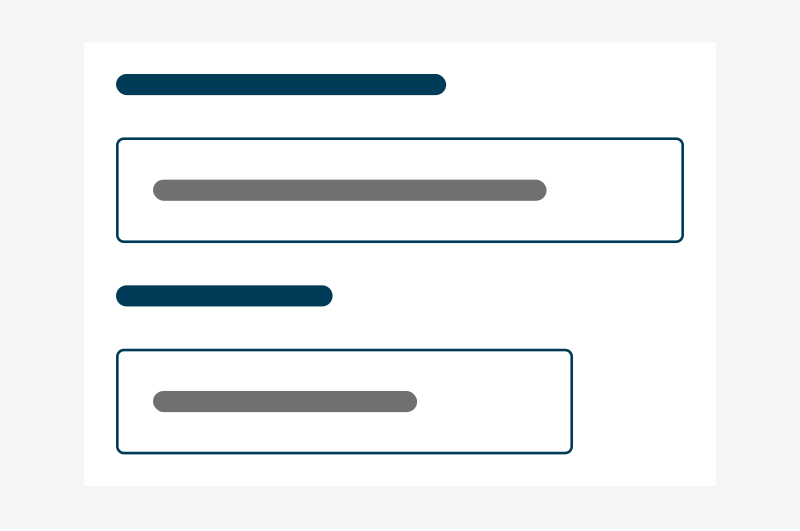
The fieldset component groups related form fields under a heading.
Input
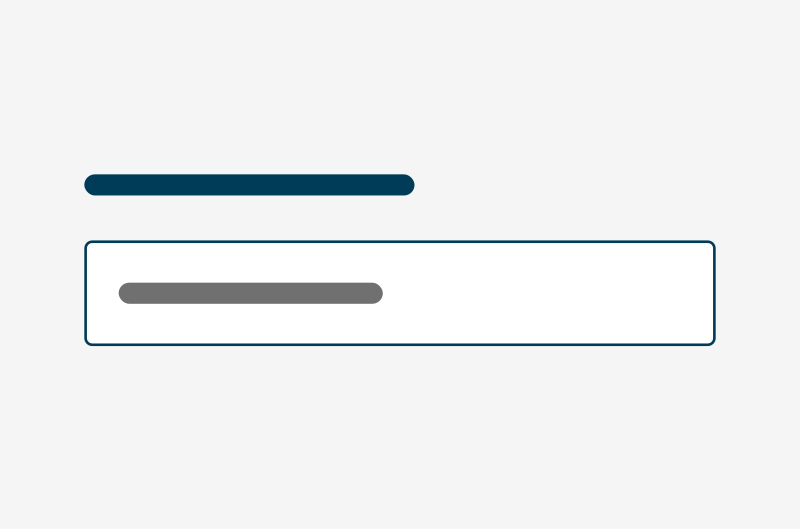
The input component captures short, single-line answers.
Label
Labels describe the purpose of a form input.
Mutually exclusive
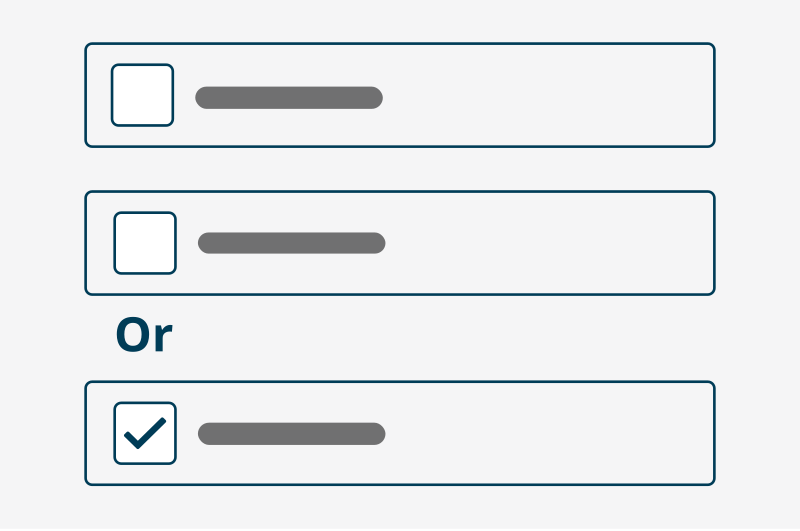
The mutually exclusive component ensures only one option can be selected.
Password
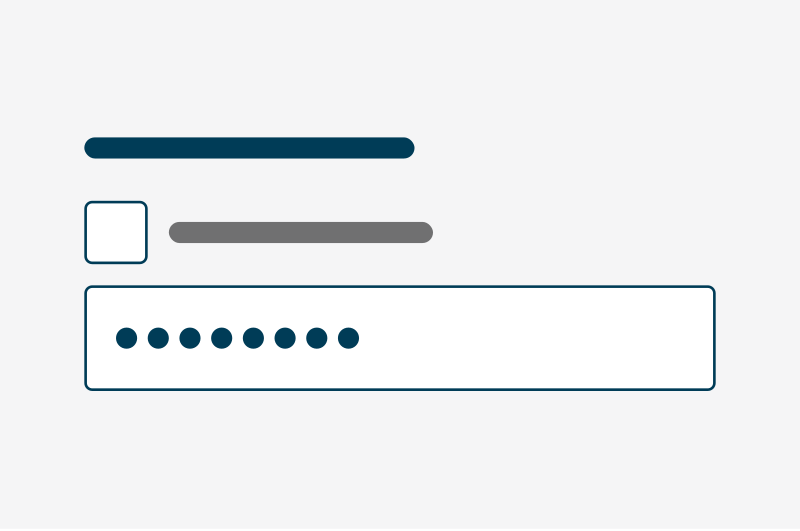
The password component lets users enter a hidden password with an option to show it.

Radios
Radios allow users to choose one option from a list.
Select
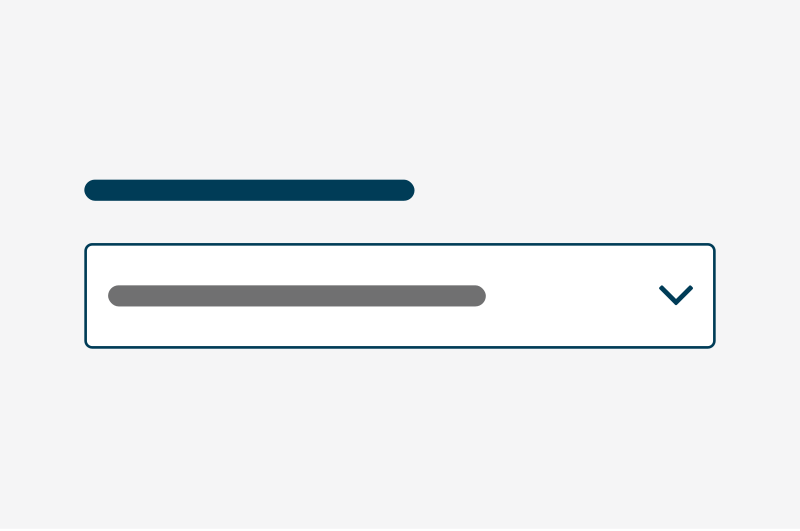
The select component lets a user make a selection from a list of options.
Summary
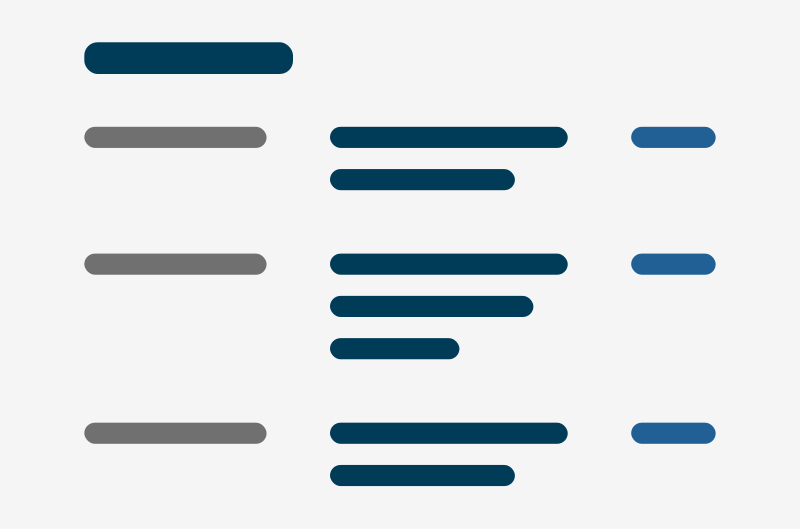
A summary relays the information a user has provided after completing a section.
Textarea
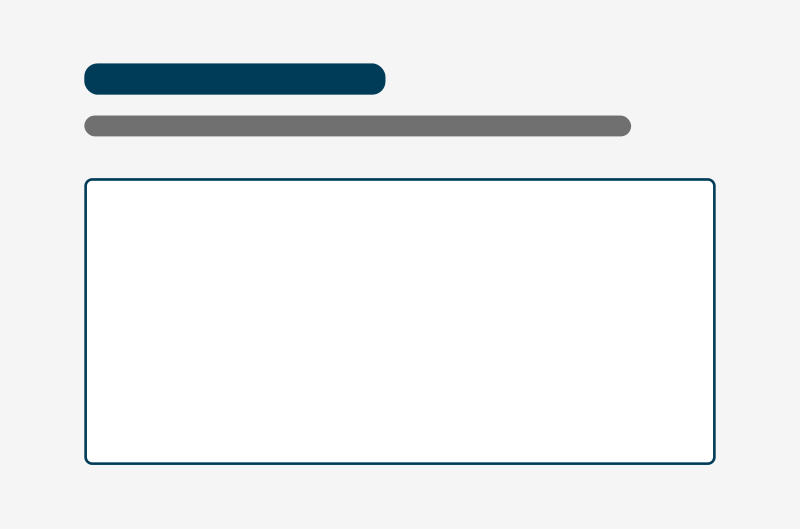
A textarea lets users enter multiple lines of text.
Timeout modal
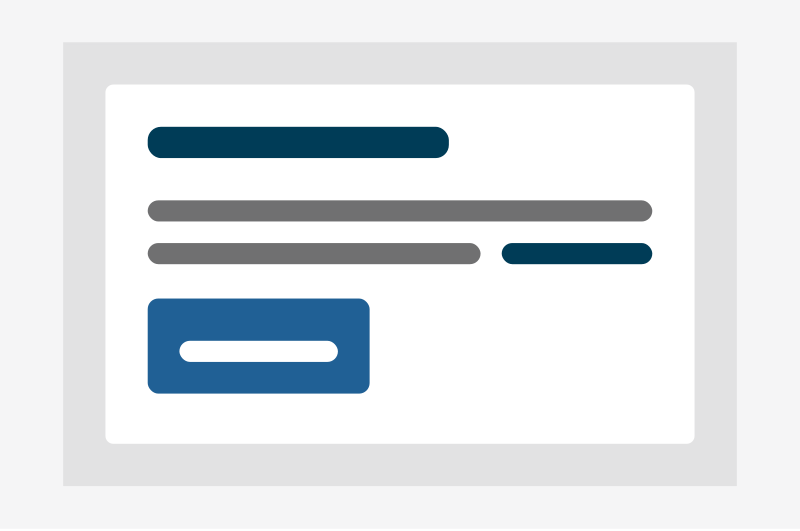
A timeout modal warns users before a session ends and lets them extend it.
Upload
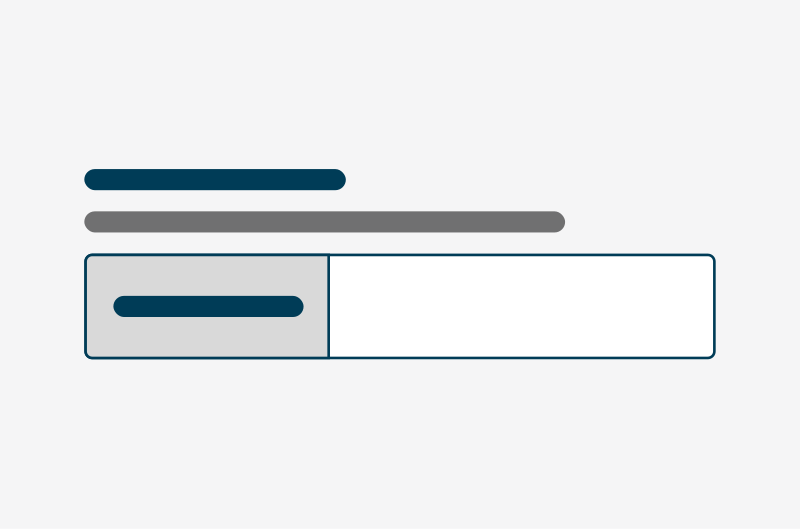
The upload component lets users choose and upload a file.
Layout
These components help structure and organize content on a page or interface.
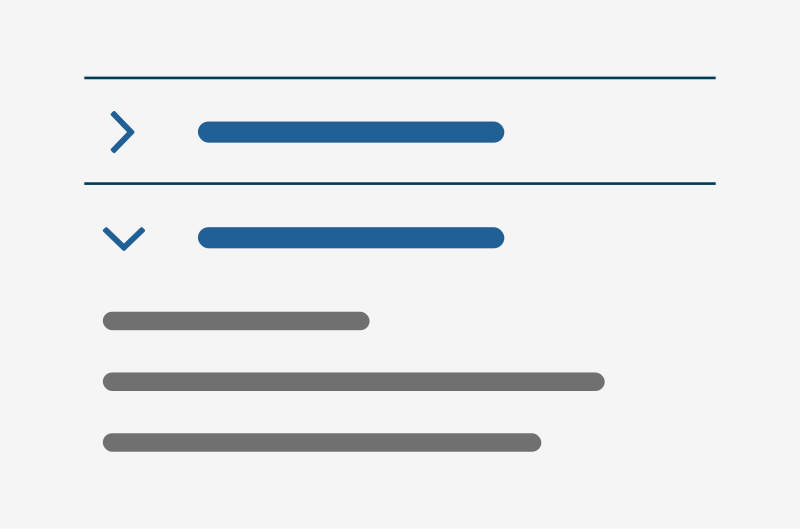
Accordion
Accordions let users show or hide sections of related content on the same page.
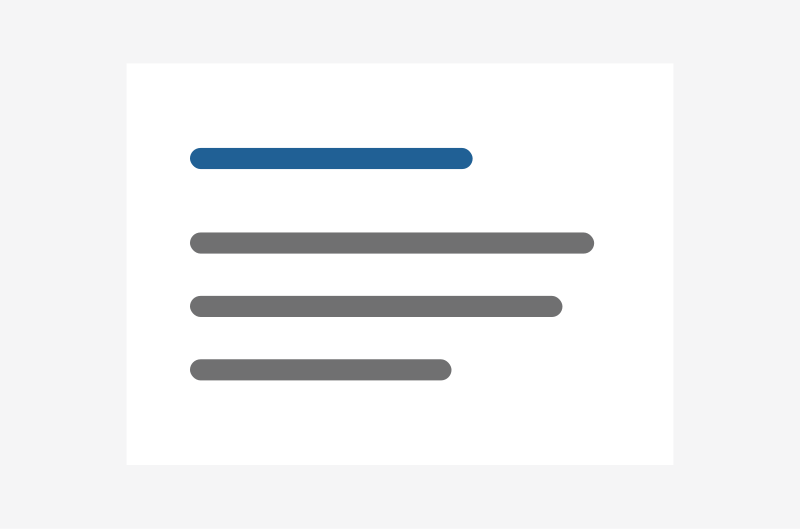
Card
The card component provides a block with a title, description and links for navigation.
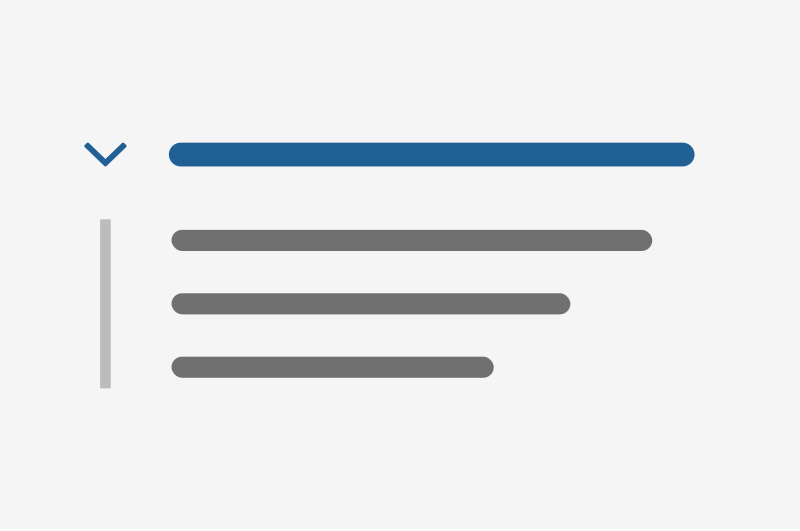
Details
The details component reveals extra information when needed.
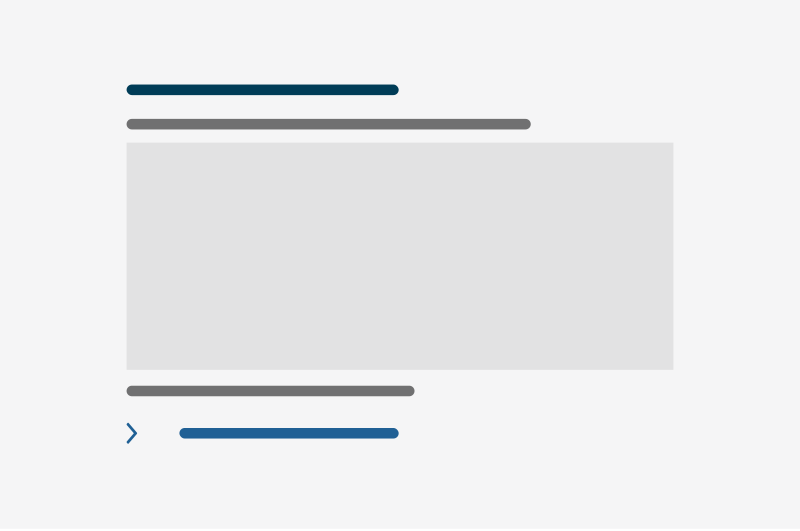
Figure
The figure component standardises the presentation of data visualisations.
Footer
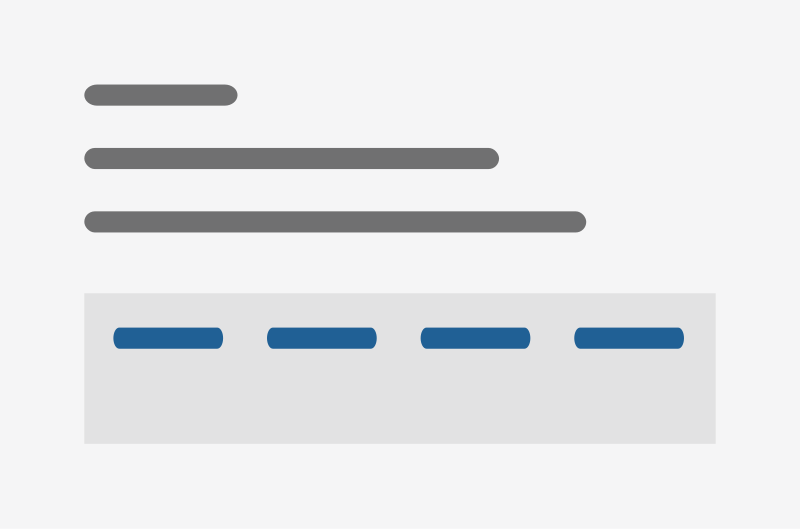
The footer provides links to supplementary information and legal pages.
Header
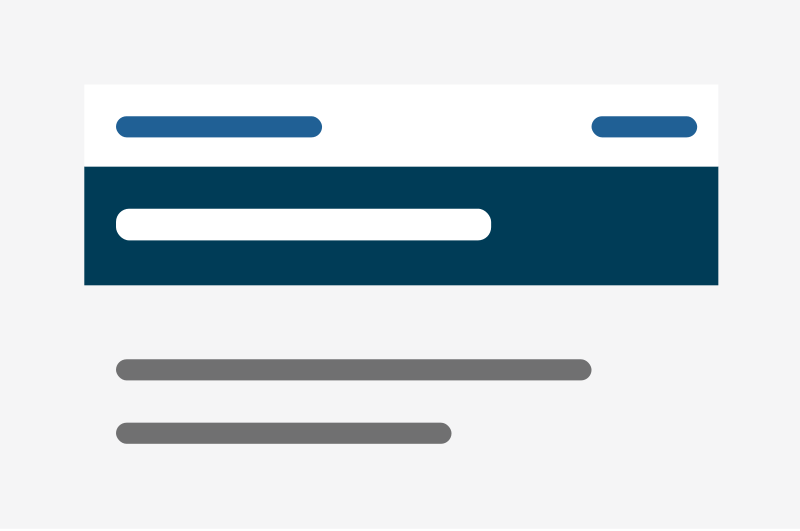
A header shows the user which service they are using.
Hero
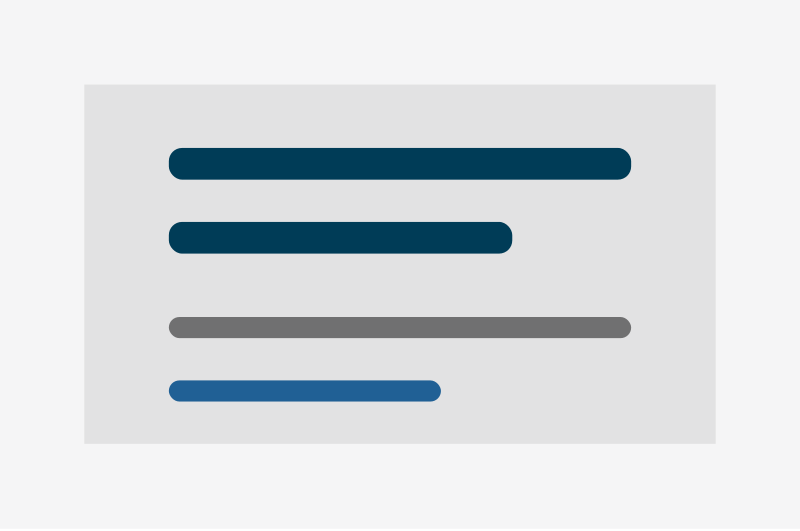
A hero banner highlights key content at the top of a page.
Phase banner
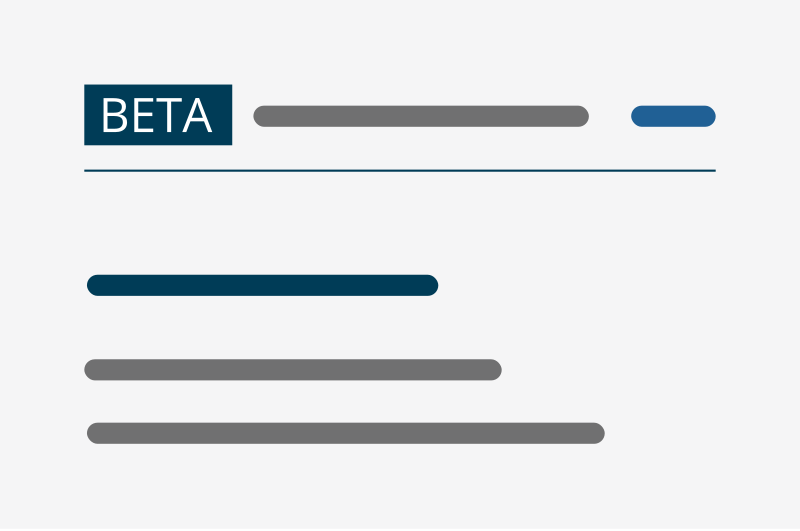
The phase banner shows the service is in development and invites feedback.

Status tag
A status tag lets the user know the status of a task.
Table
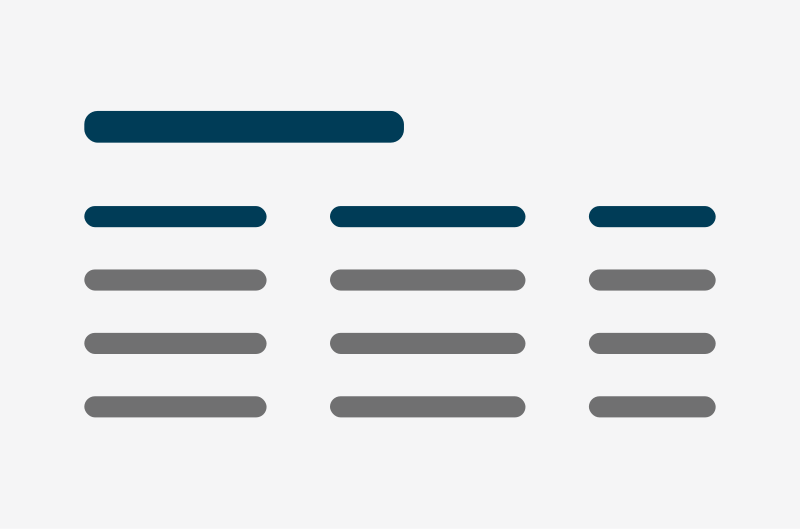
Tables organise and present data in rows and columns.
Timeline
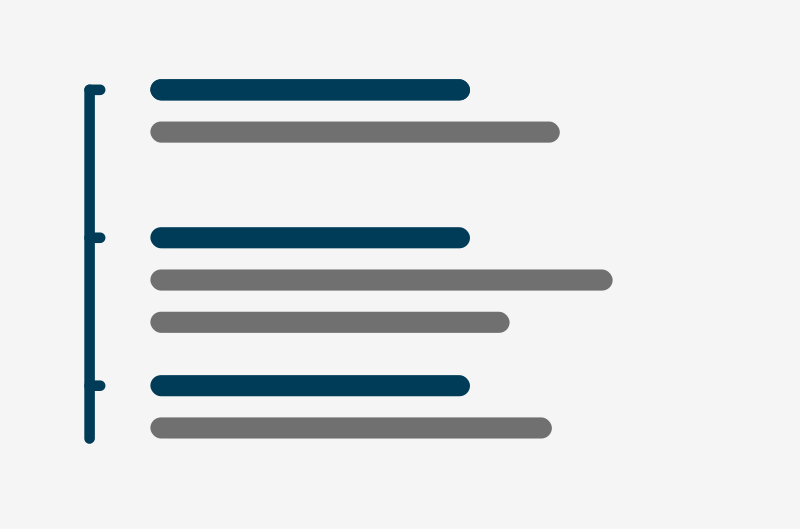
The timeline component shows a linear record of events.
Information and Media
These components present content clearly and effectively including text, images and videos.
Announcement banner
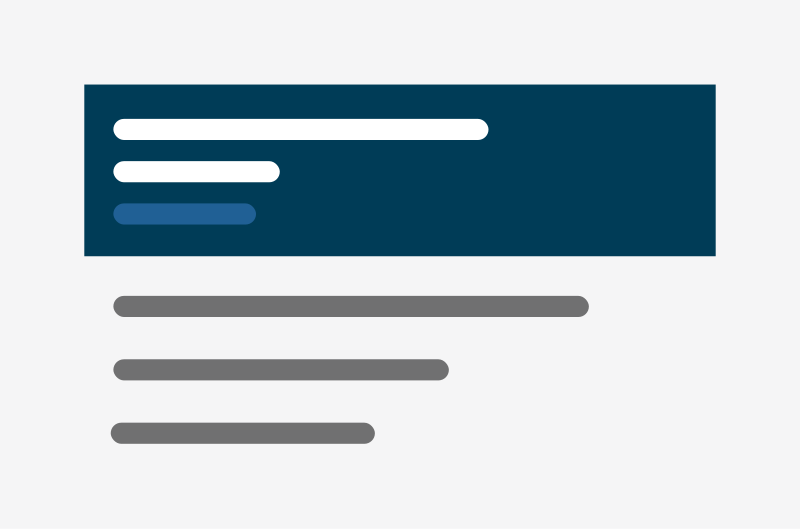
The announcement banner highlights important messages for all users.

Description list
A description list displays important information in a structured format.
Document list
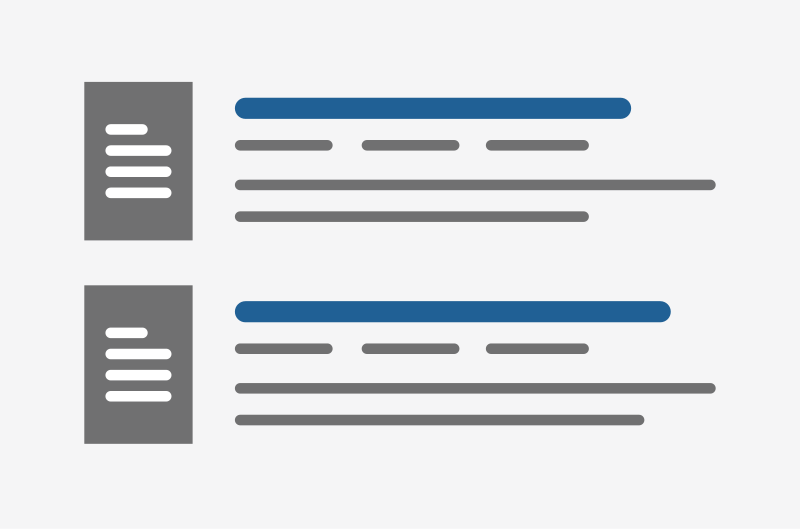
A document list displays documents with titles, metadata and optional images.

Image
The image component adds an image to the page with an optional caption.

Panel - information
Information panels are used to draw attention to useful information.
Panel - success
The success panel is used to confirm a task has been completed.

Panel - warning
Warning panels alert users to risks and issues to be aware of.
Related content
Related content provides links to additional or supporting information.
Share page
The share page component lets users share the page on social media.

Video
The video component lets users view video content.
Charts
The code to build the chart examples are provided in the different chart pages in this section. For all Data Visualisation guidance, including on choosing a chart type and the build specifications for different chart types, please visit the data visualisation section of the Service Manual..

Area charts
An area chart uses coloured areas to show the size of components in continuous data.
Bar charts
A bar chart uses horizontal rectangular bars to display data. Includes clustered and stacked bar charts.
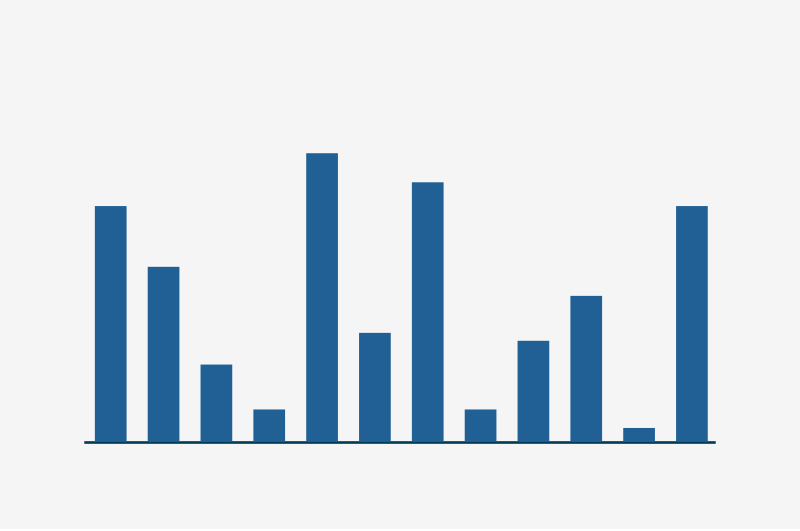
Column charts
A column chart uses vertical rectangular bars to display data. Includes stacked, clustered and column with line.
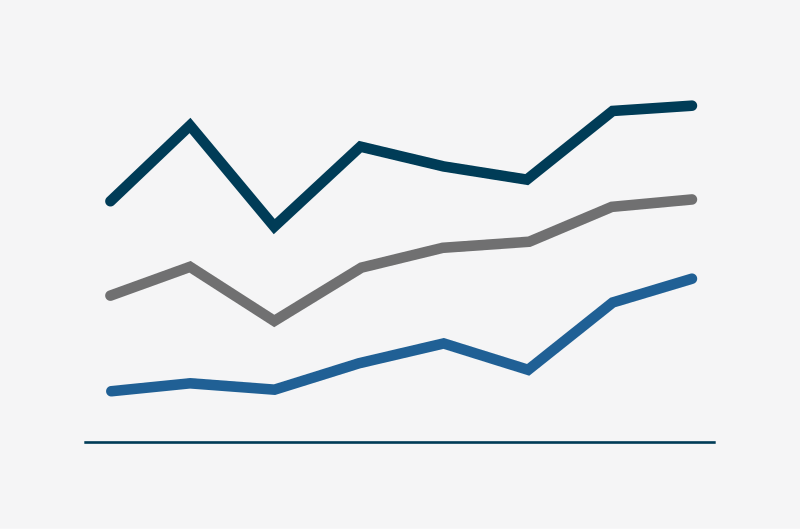
Line charts
A line chart uses lines of different colours connecting data points to display data.
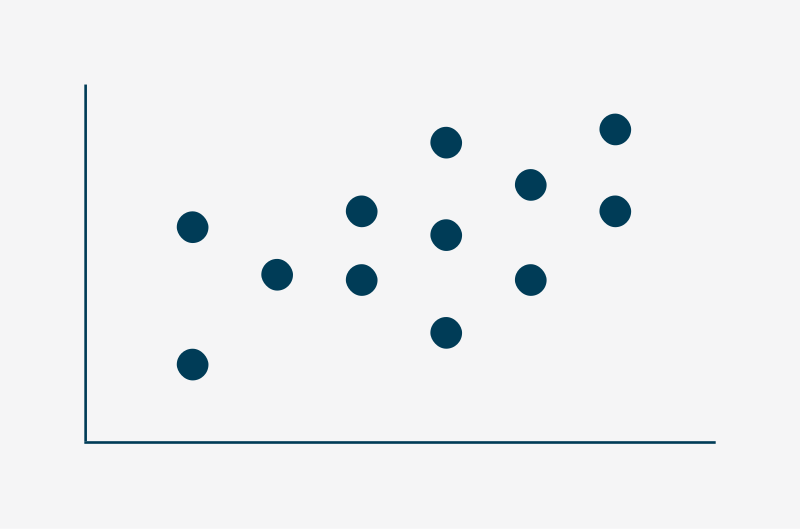
Scatter charts
A scatter chart uses dots spread across a grid to display data.